Unity Matchmaker (Cloud Code) Integration Guide
Last updated: May 29, 2026
This guide provides a step-by-step checklist for integrating the Unity Matchmaker service with Multiplay hosting using Unity Gaming Services (UGS) Cloud Code. Following these steps will enable dynamic allocation of Multiplay-hosted game servers via the Matchmaker service, leveraging custom logic deployed in Cloud Code.
STEPS
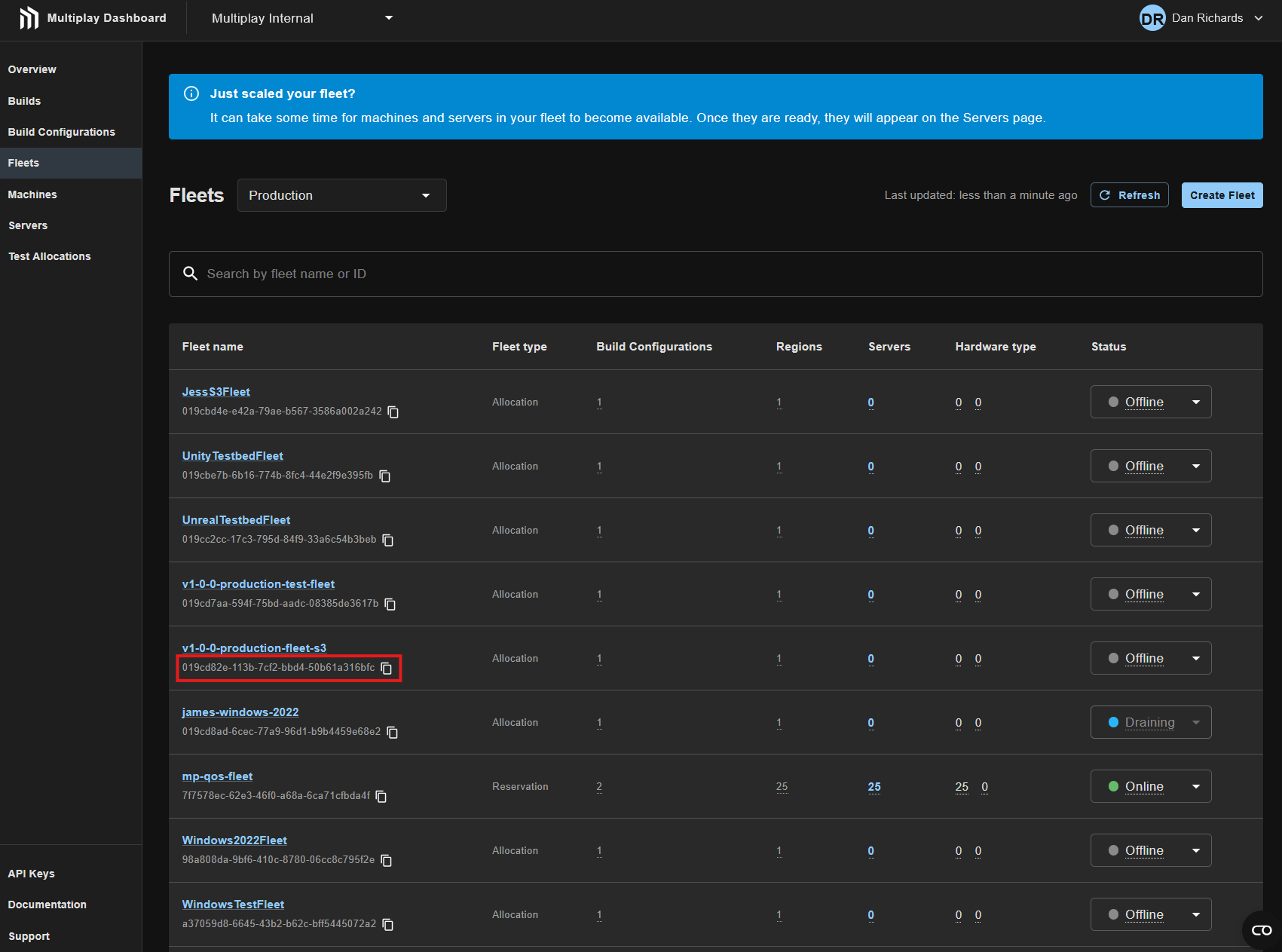
Open the Multiplay Dashboard and note down the ID of the fleet you want to integrate with Unity Matchmaker. You can find this on the “Fleets” page.
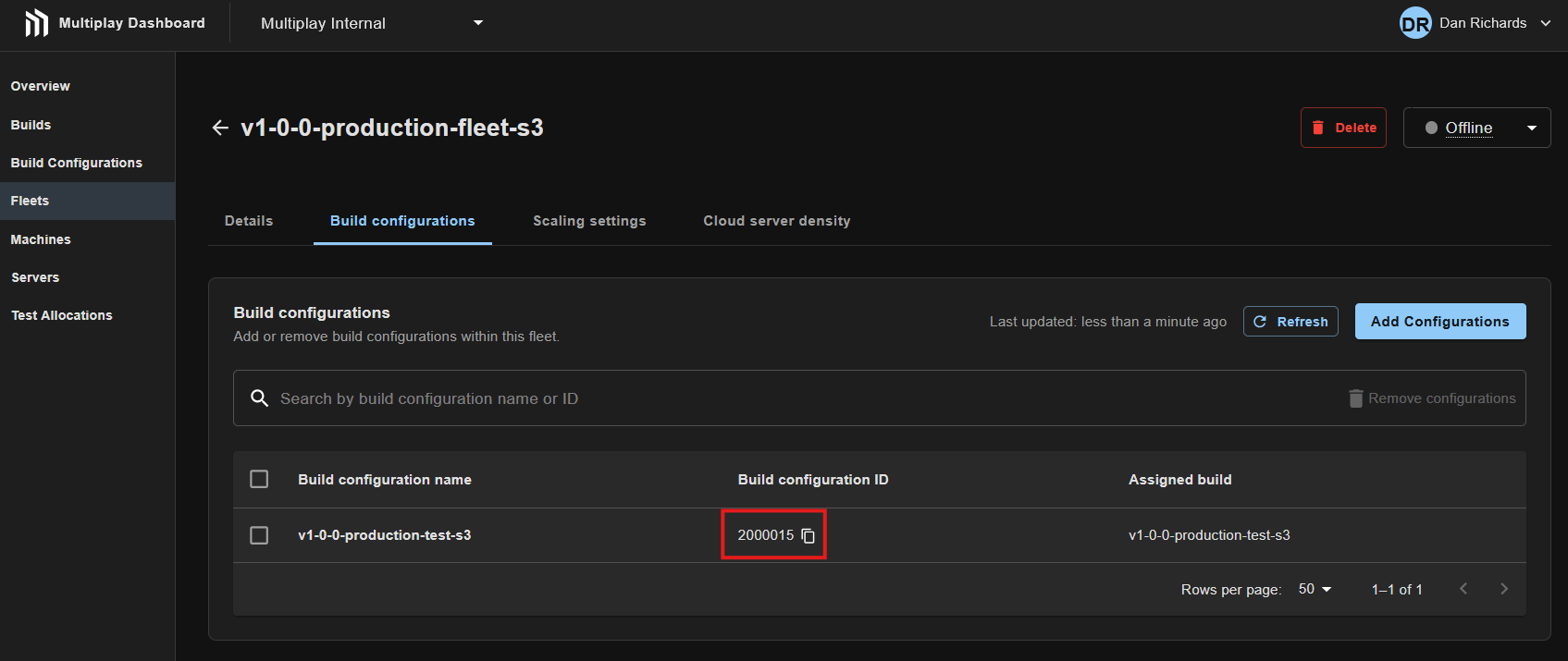
Note down the ID of the build configuration that you want to use when allocating game servers with Unity Matchmaker. You can find this in the Multiplay Dashboard on the “Build Configurations” tab of your fleet
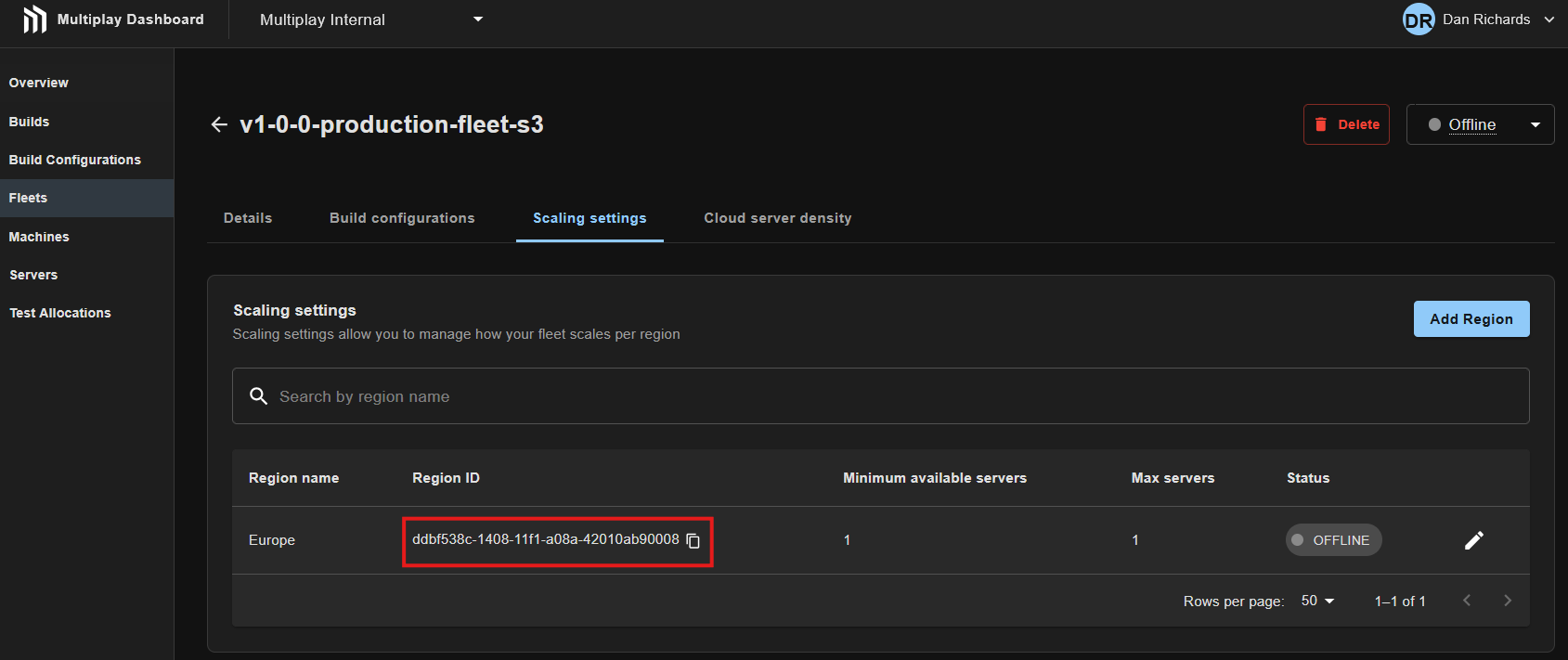
Note down the ID of the region you want to use as the default or fallback when allocating game servers via the matchmaker. This will be used only in the case where your Unity Matchmaker ticket did not contain a requested region ID. You can find this in the Multiplay Dashboard on the “Scaling settings” tab of your fleet
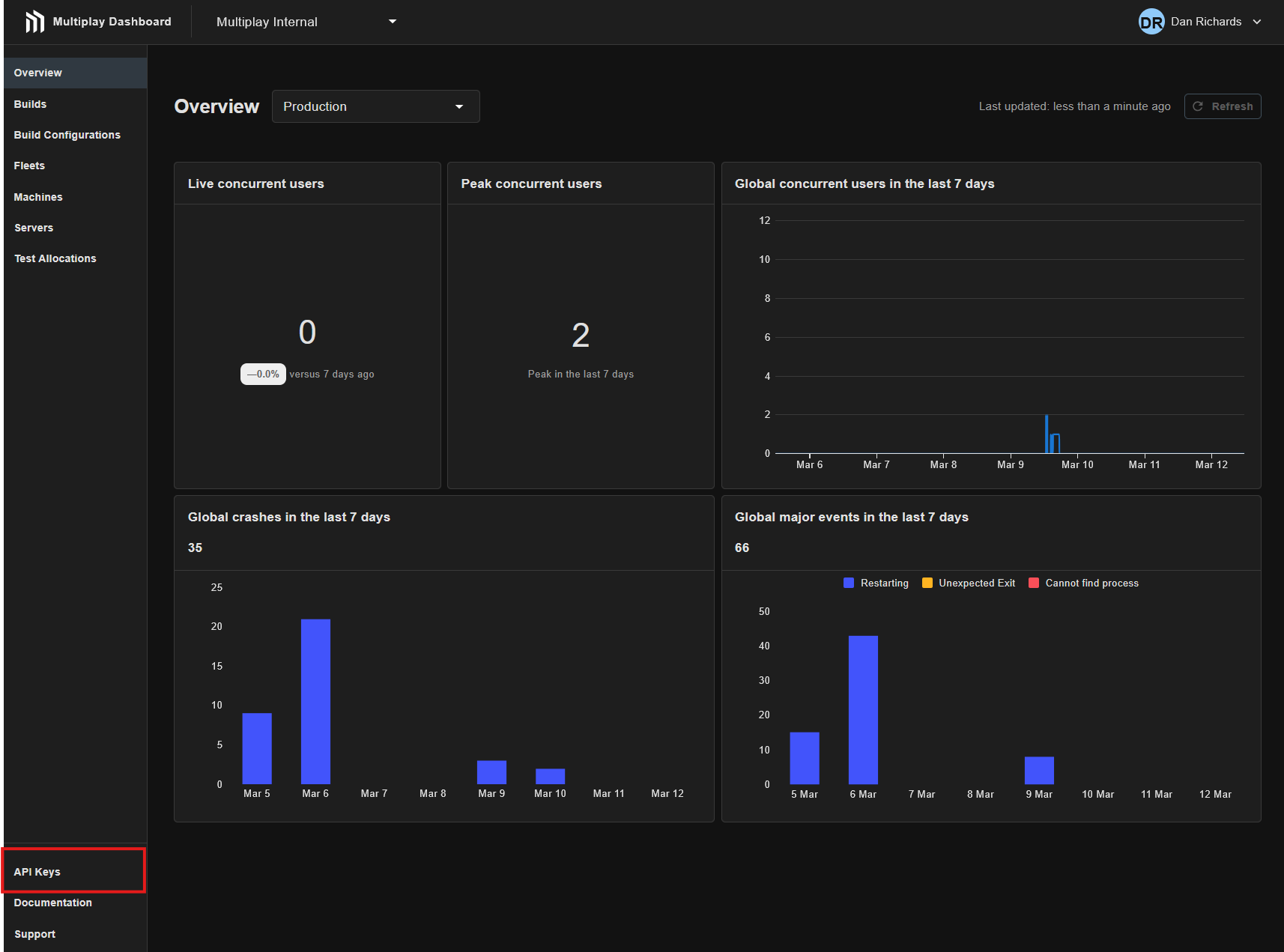
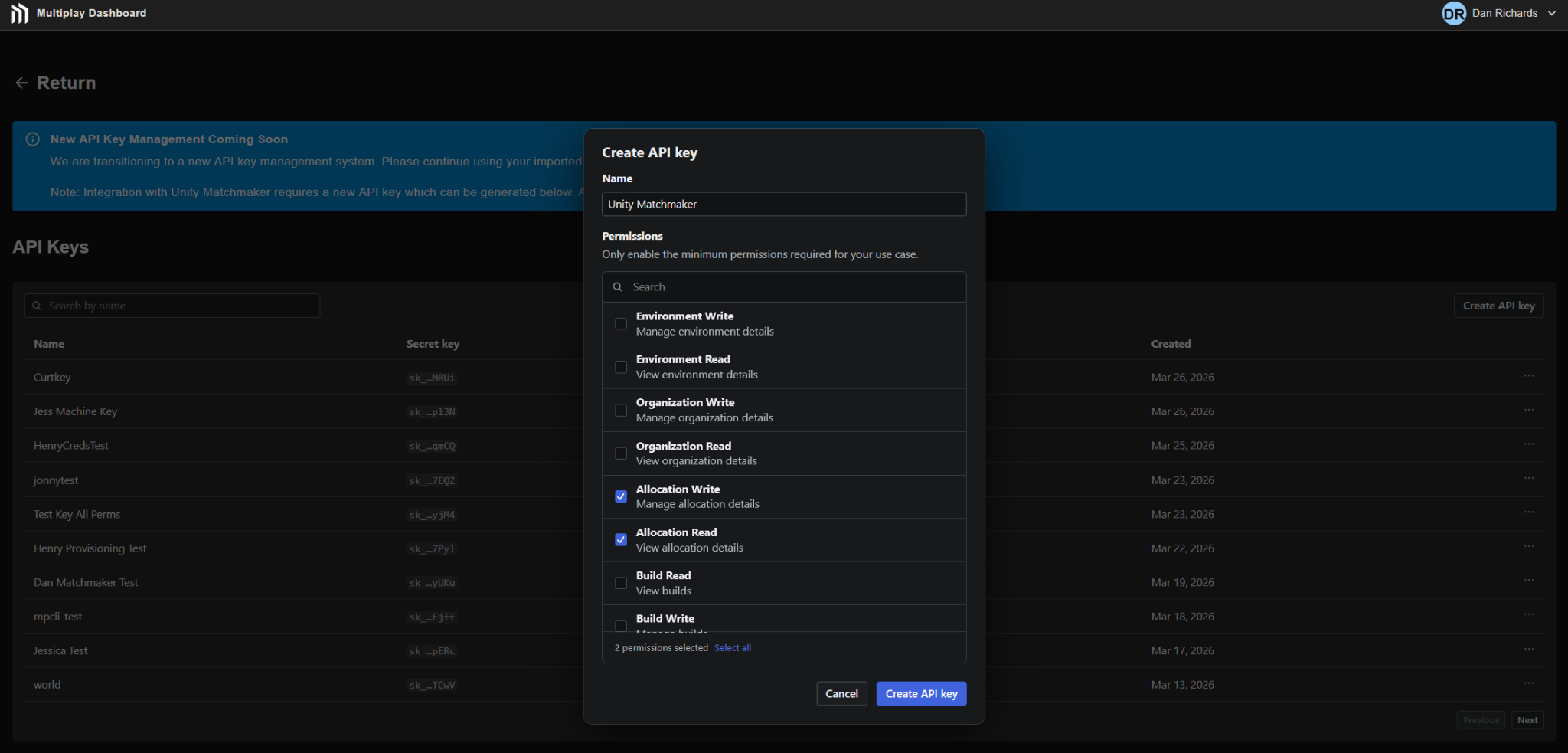
Next you need to create an API key in the Multiplay Dashboard, you can find them by clicking the “API Keys” link in the bottom left hand corner of the dashboard.
Create a new API key, ensuring you give it Allocation Read and Allocation Write permissions
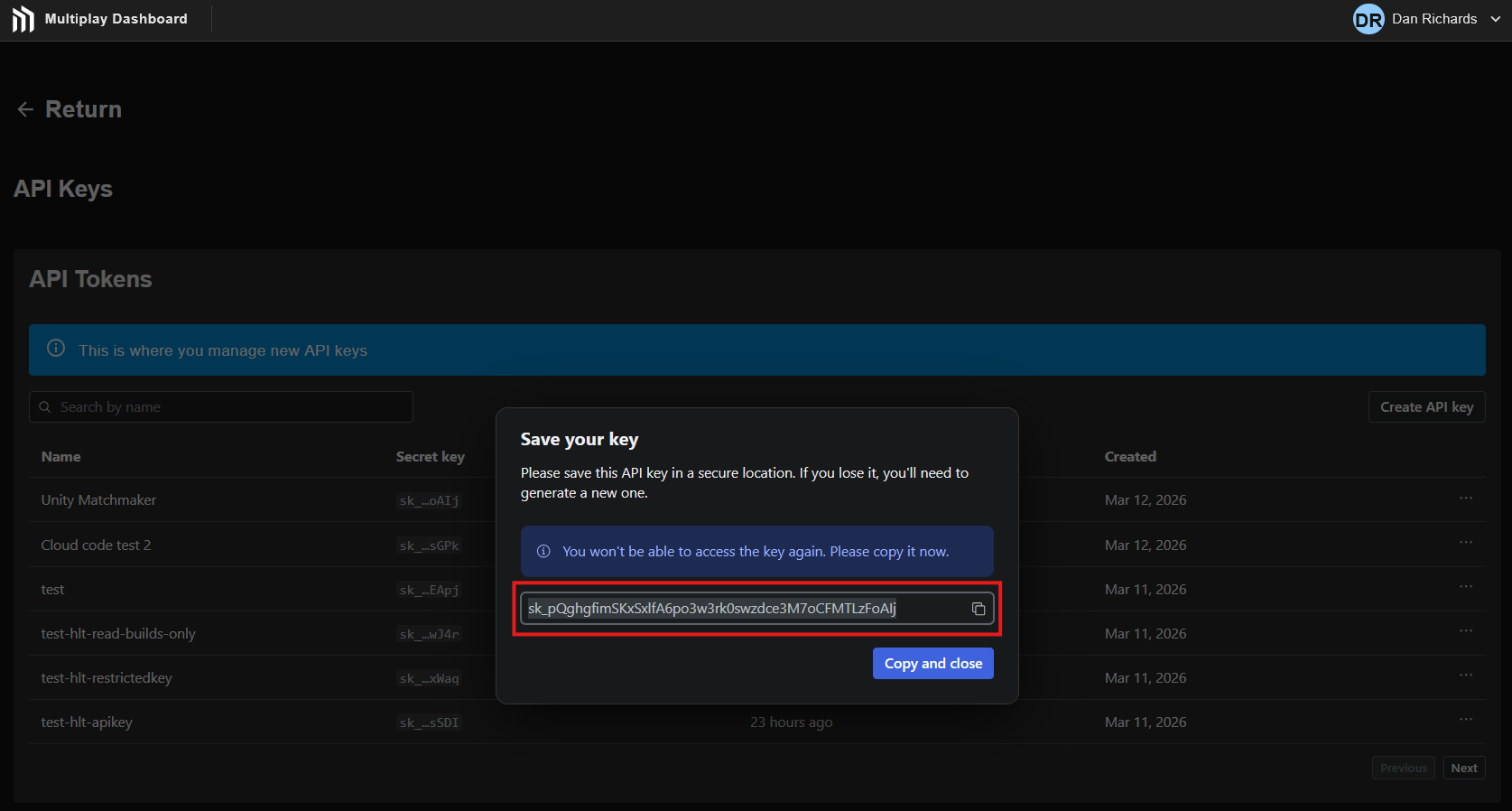
Make a note of the generated API key. Keep this in a secure location as you will not be able to view the value again once you close the pop-up.
Download the Unity Matchmaker hosting providers module
Open the hosting providers module in your favourite code editor. Enter your fleet, build config and region details in modules/RocketScienceAllocator/Project/RocketScienceAllocator.cs
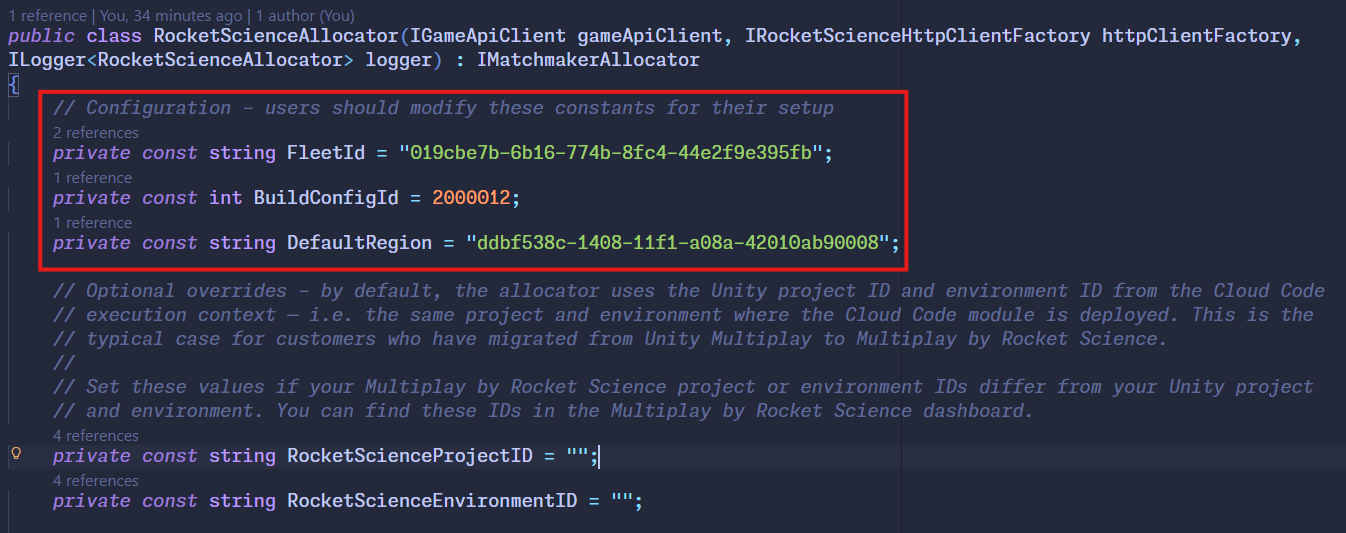
Note: you can optionally specify a Rocket Science project ID and environment ID in this file. If you have been migrated from Unity Multiplay to Multiplay by Rocket Science, you should be able to ignore these values as your project and environment IDs will match. By default Unity Cloud Code will use the project and environment ID where it is deployed in the Unity Dashboard.
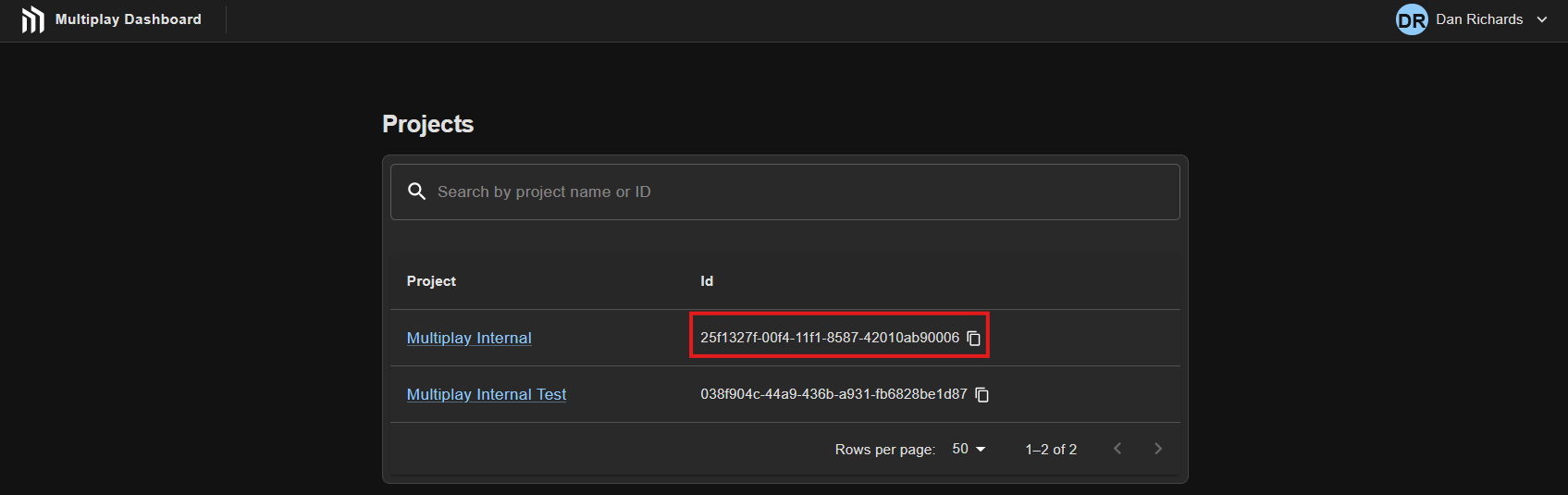
However, if you have never used Unity Multiplay or your project/environment IDs differ, you should enter them here. These values will override the defaults used by Unity Cloud Code. You can find your project ID from the projects list page on the Multiplay Dashboard, by clicking the Multiplay logo in the top left hand corner.
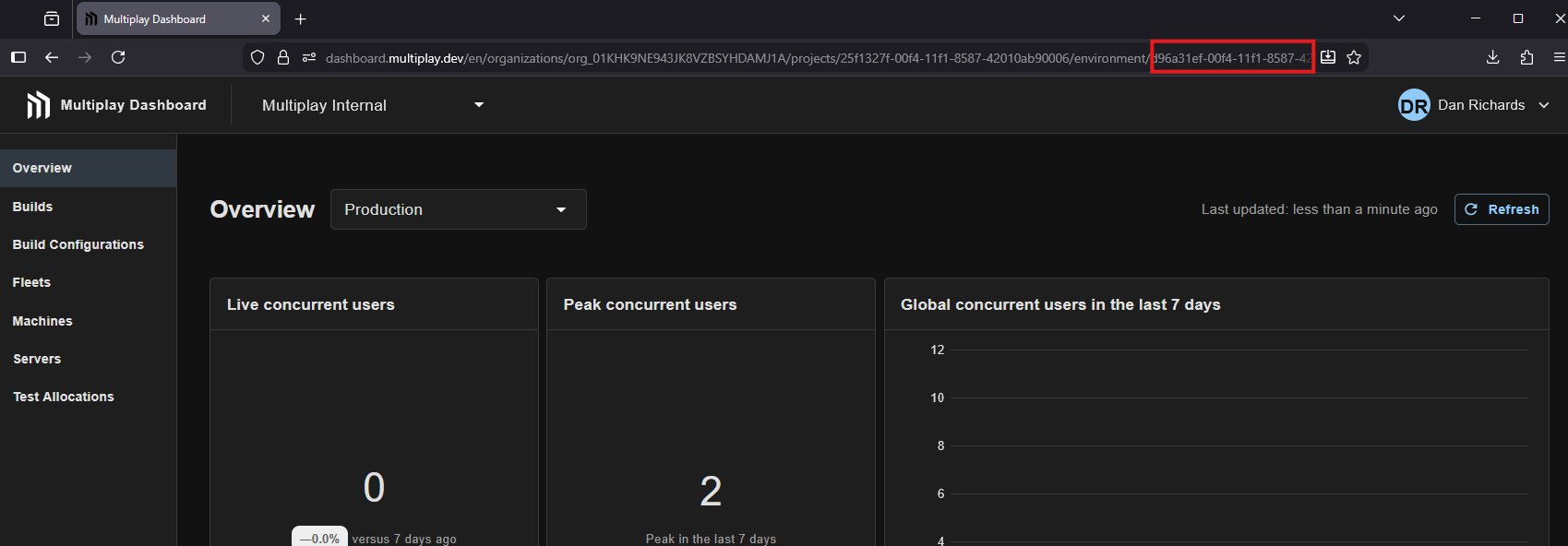
The environment ID can be found in the URL in your browser when viewing a project
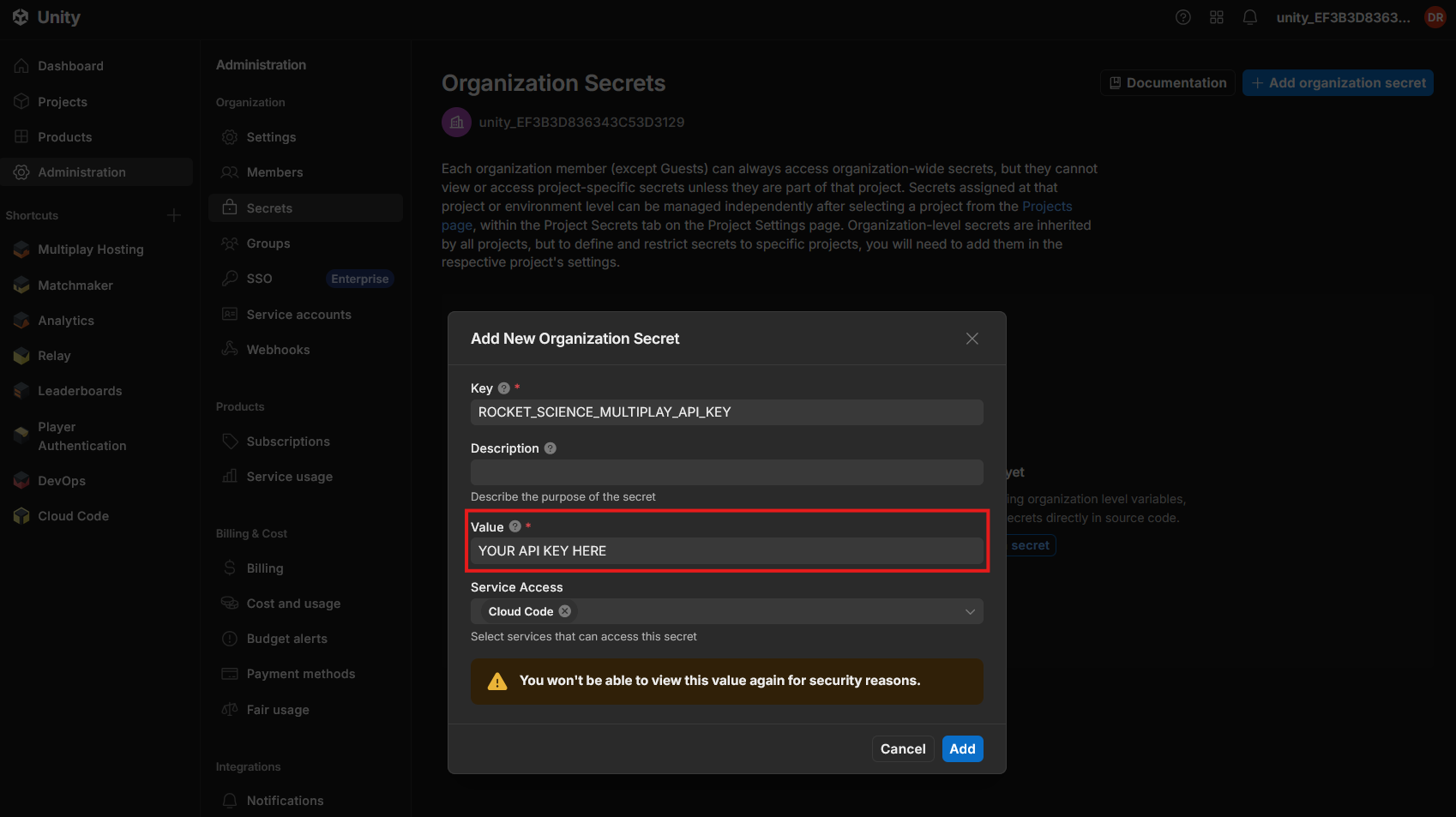
Using the API key you copied earlier, create a new organization secret in the Unity Dashboard which you can find under the “Administration > Secrets” page. The secret must be called ROCKET_SCIENCE_MULTIPLAY_API_KEY and ensure that “Cloud Code” is selected in the “Service Access” box
Install the UGS CLI. Once you have done this, you should be able to deploy the module by running ugs deploy modules/RocketScienceAllocator from the directory where you downloaded the hosting providers code. Alternatively, follow the documentation to deploy from the Unity editor.
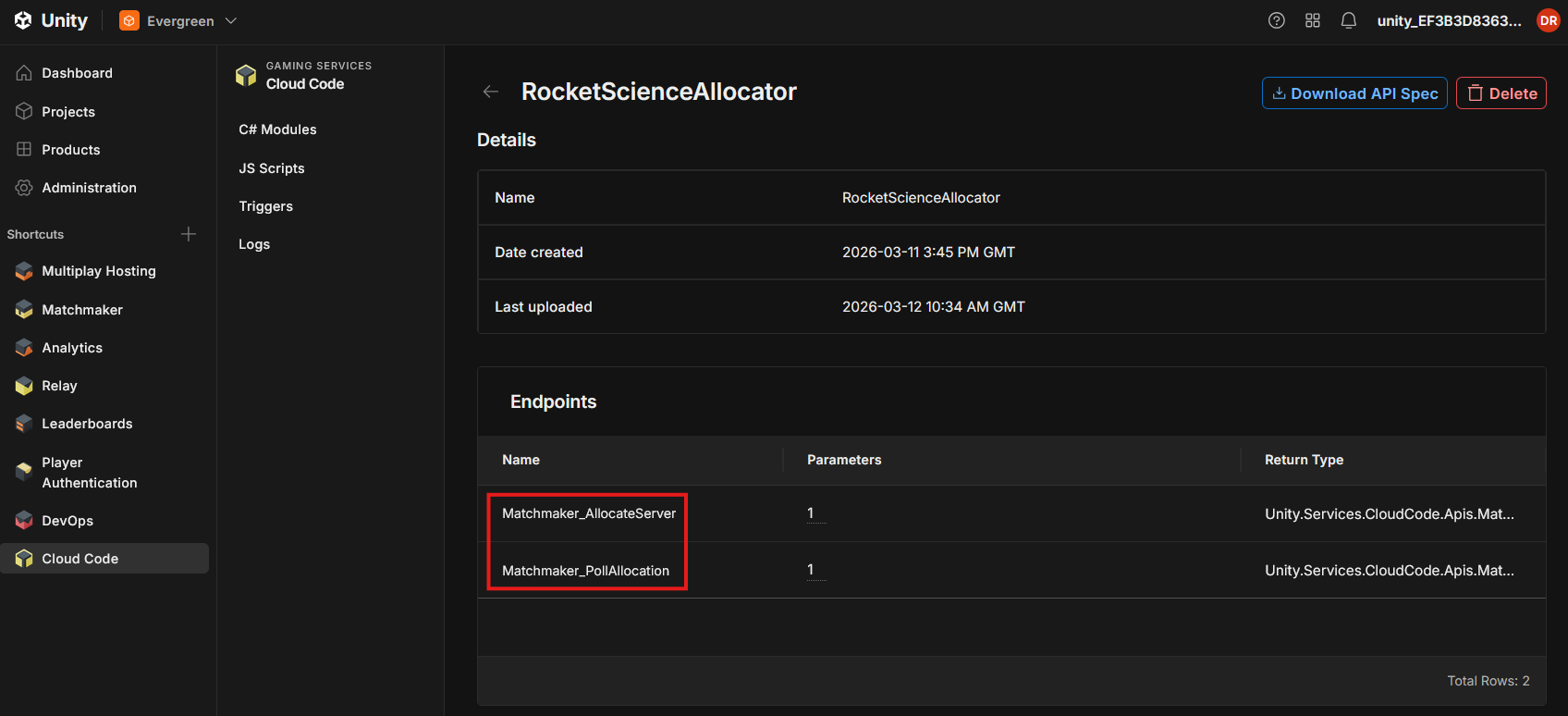
If the deployment was successful you should see RocketScienceAllocator in the Cloud Code section of Unity Dashboard with two endpoints - Matchmaker_AllocateServer and Matchmaker_PollAllocation
If you do not already have one, create a new Unity Matchmaker queue and Pool
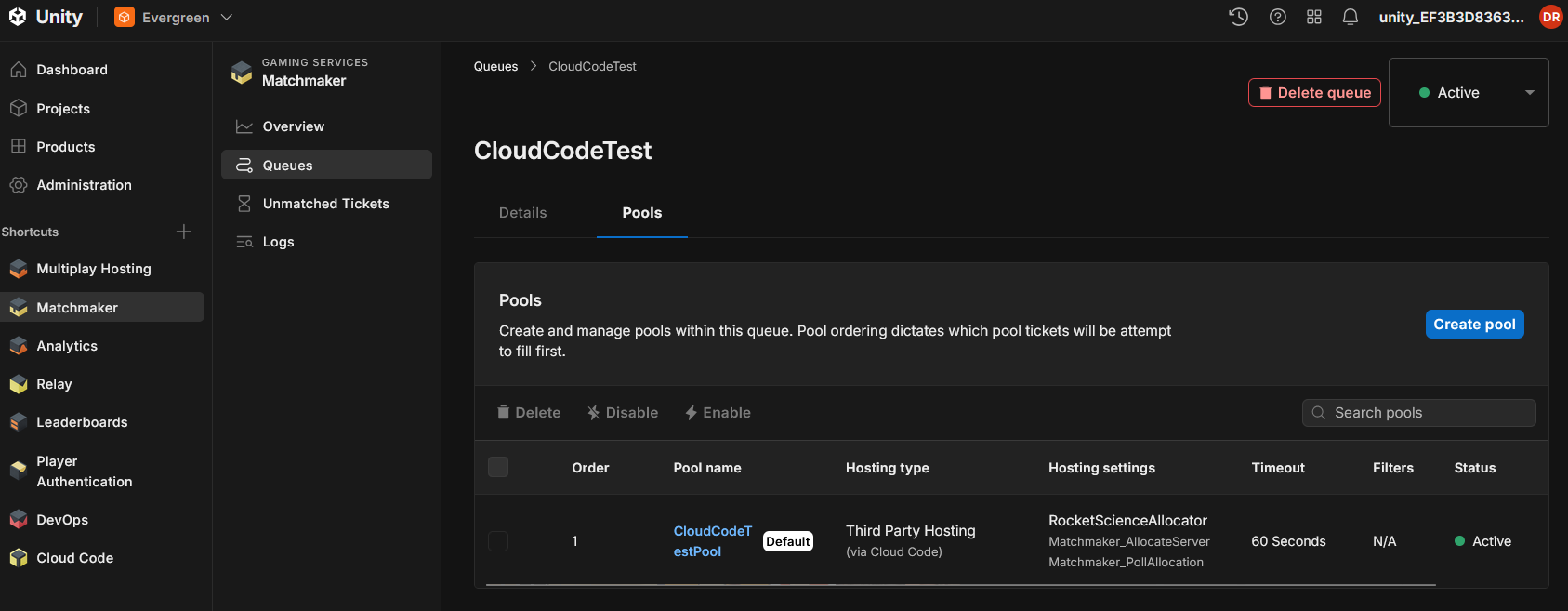
Next you need to set the hosting type for your pool, the best option here depends on the version of the Unity Multiplayer Services SDK you are using and if you have previously hosted your game with Unity Multiplay:
In the case of Multiplay Hosting (also referred to as backward compatibility mode) you will need to set the cloud code “overrides” below your fleet, build configuration and QoS region settings. Select RocketScienceAllocator as the module name, Matchmaker_AllocateServer as the allocate endpoint and Matchmaker_PollAllocation as the poll endpoint.
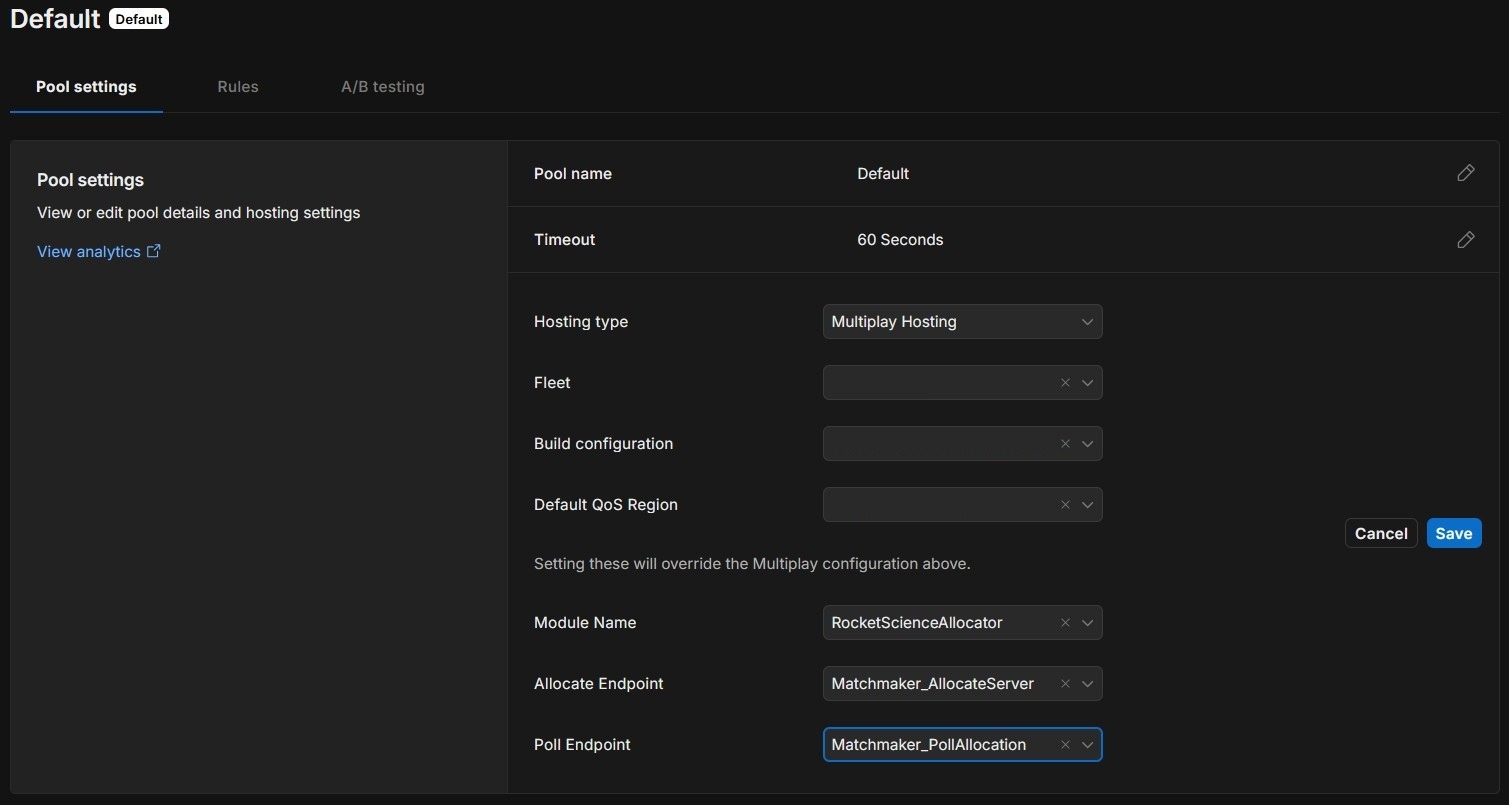
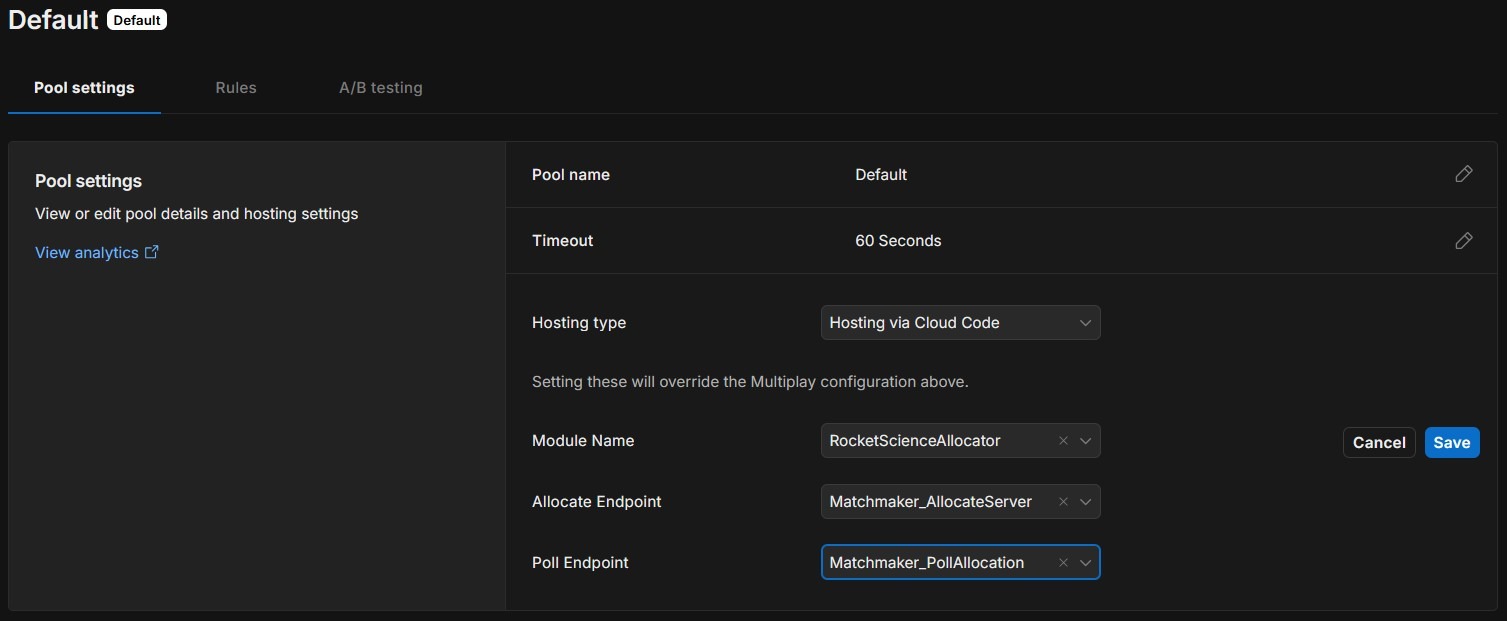
In the case of Hosting via Cloud Code you just need to select RocketScienceAllocator as the module name, Matchmaker_AllocateServer as the allocate endpoint and Matchmaker_PollAllocation as the poll endpoint.
Please refer to the Unity Matchmaker documentation and Multiplay hosting migration documentation